How to Group Clips in Adobe Premiere Pro CC 2018
Premiere Pro
Grouping clips is one of those simple organizational features that saves you a lot of headaches. When you group clips together in Premiere Pro, they move as a single unit on the timeline. This is incredibly useful when you have multiple clips, graphics, and audio tracks that are synced together and you need to move them without accidentally knocking something out of alignment.
Today I am going to show you how to group and ungroup clips in Adobe Premiere Pro CC.
How to Group Clips in Premiere Pro
- Navigate to the sequence that contains the clips you want to group.
- Select the clips you want to group together. You can do this in a few ways:
- Click and drag a selection box over the clips to select everything inside it.
- Ctrl+click (Cmd+click on Mac) on individual clips to select specific ones.
- Select one clip, then Shift+click on another to select a range.
- With your clips selected, go to Clip > Group in the menu bar. Or use the keyboard shortcut Ctrl+G (Cmd+G on Mac).
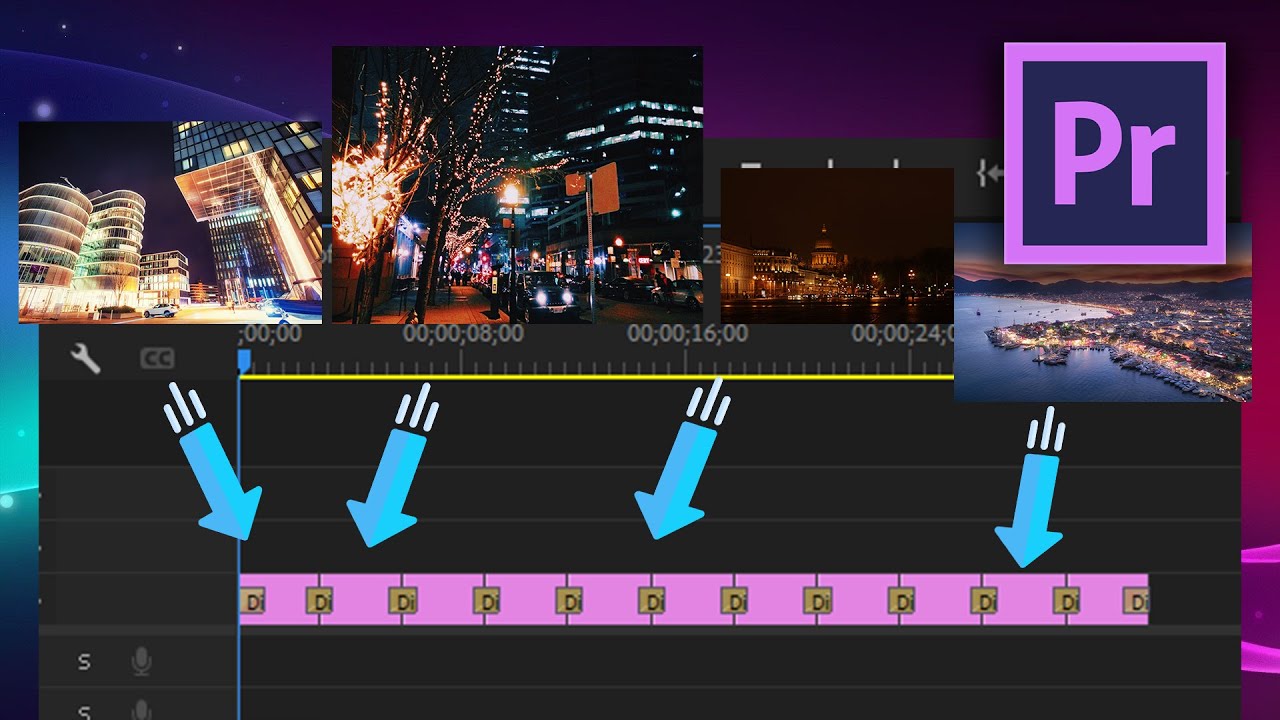
- The clips are now grouped. You will notice a thin line connecting them visually on the timeline.
- When you drag or move any clip in the group, all of them move together.
How to Ungroup Clips
- Select any clip in the group (clicking one selects the whole group).
- Go to Clip > Ungroup in the menu bar. Or use the keyboard shortcut Ctrl+Shift+G (Cmd+Shift+G on Mac).
- The clips are now independent again and can be moved separately.
When to Use Grouping
- Multi-track sections. When you have video, audio, and graphics layers that are all synced together for a specific section. Grouping them means you can slide the whole section earlier or later without anything going out of sync.
- After assembling a montage. Once you have a montage edited and timed perfectly, group all the clips so you can move the whole montage as one block.
- Graphics with footage. If you have a text overlay or watermark that needs to stay synced with a specific clip, grouping them keeps them together.
- Protecting finished sections. Group the clips in sections you are done editing. This prevents accidental changes when you are working on other parts of the timeline.
Tips
- Grouping does not affect nested sequences. If you need to apply effects to multiple clips as one, use nesting (right click > Nest) instead. Grouping only affects movement and selection.
- You can still trim individual clips within a group. Click directly on the edge of a clip to trim it without ungrouping.
- Groups can span multiple tracks. Video on V1, audio on A1, and a graphic on V2 can all be in the same group.
- Combine with tagging footage for a well-organized project. Tags help you find clips in the Project panel, and grouping keeps them organized on the timeline.
That’s it. Grouping is a simple but powerful tool for keeping your timeline clean and your clips in sync. Once you start using it, you will wonder how you ever managed without it.