How to Quickly Insert Clips in Between Premiere Pro CC (2024)
One of the most important things to learn as an editor is how to increase speed without reducing quality. Small shortcuts and workflow improvements add up over time, and before you know it, you are editing twice as fast as you used to. One of the simplest but most powerful shortcuts in Premiere Pro is the insert edit.
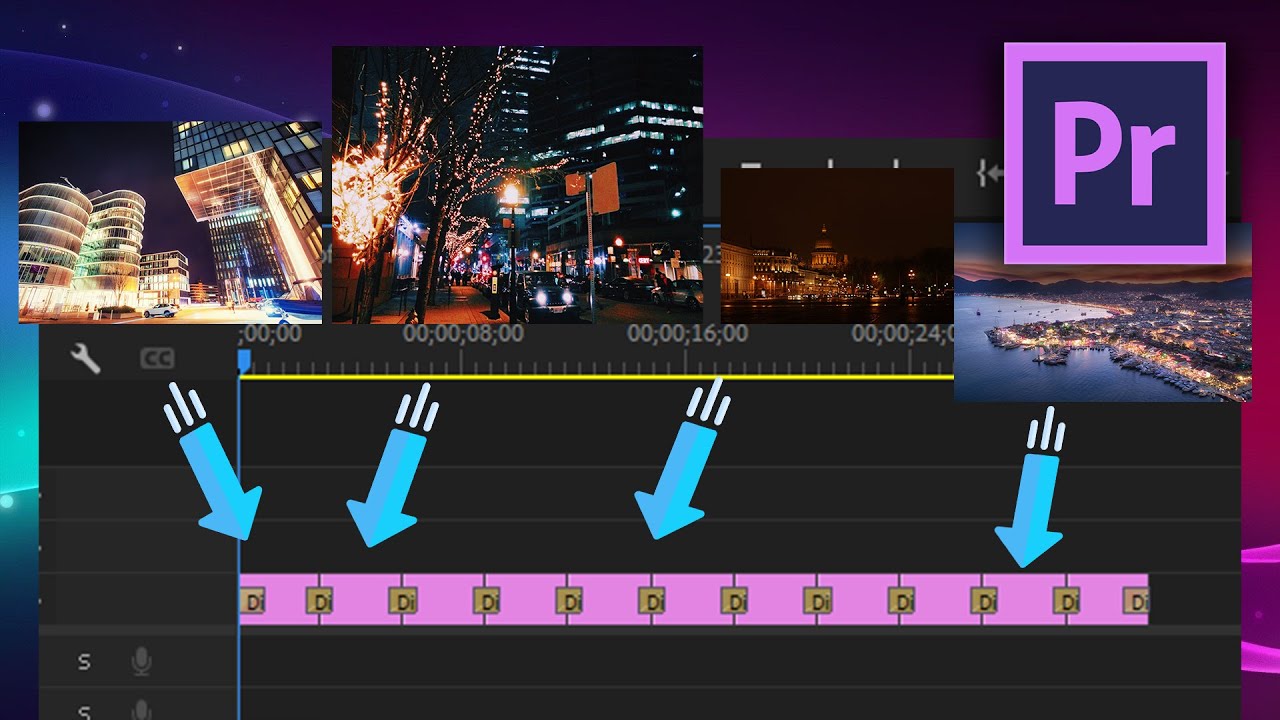
By default, when you drag a clip onto the timeline, it overwrites whatever is already there. But what if you want to insert a clip between two existing clips and push everything else forward? You don’t want to overwrite your edit. You want everything to slide over to make room. Today we go over how to quickly insert clips between other clips in Premiere Pro.
How to Insert Clips in Premiere Pro
The Ctrl-Drag Method
The core technique is one key: Ctrl (Cmd on Mac).
- Find the clip you want to insert in the Project panel or Source Monitor.
- Drag it toward the timeline where you want to insert it.
- While dragging, hold down the Ctrl key (Cmd on Mac).
- You will see the insert indicator appear on the timeline. Drop the clip where you want it.
- Every clip to the right of the insertion point shifts forward to make room. This includes video, audio, effects, and graphics on all tracks. Nothing gets overwritten or destroyed.
That’s it. One key changes the behavior from overwrite to insert.
Using the Insert Button
You can also use the keyboard shortcut without dragging:
- Open the clip you want to insert in the Source Monitor by double clicking it in the Project panel.
- Set In (I) and Out (O) points on the source clip to mark the portion you want to use.
- Move the playhead on the timeline to the position where you want the insert.
- Press the comma key ( , ) on your keyboard. This is the default shortcut for Insert Edit.
- The clip is inserted at the playhead position and everything to the right shifts forward.
When to Use Insert vs Overwrite
| Method | Key | What Happens |
|---|---|---|
| Overwrite | Drag (no modifier) or period (.) | New clip replaces whatever is at that position |
| Insert | Ctrl+Drag or comma (,) | New clip pushes everything forward to make room |
Tips
- Insert editing is essential for second and third passes. On your first rough cut, overwrite editing is fine. But once you have effects, audio, and graphics layered on the timeline, using insert mode prevents you from accidentally destroying work.
- Use it with trimming for a fast cleanup workflow. Insert new clips where needed, then trim the surrounding edits for precise timing.
- Be aware of track targeting. The insert will push clips on all targeted tracks. Make sure the correct tracks are targeted (the blue/green highlight on the track headers) before inserting, or clips on other tracks may shift unexpectedly.
- Combine with cutting out bad footage for a fast editing workflow. Extract bad sections, then insert replacements.
That is how you insert clips in Premiere Pro. It is a one-key shortcut that becomes absolutely essential once your timelines get complex.