How to Quickly Smooth Skin and Remove Blemishes in Adobe Photoshop CC
Photoshop
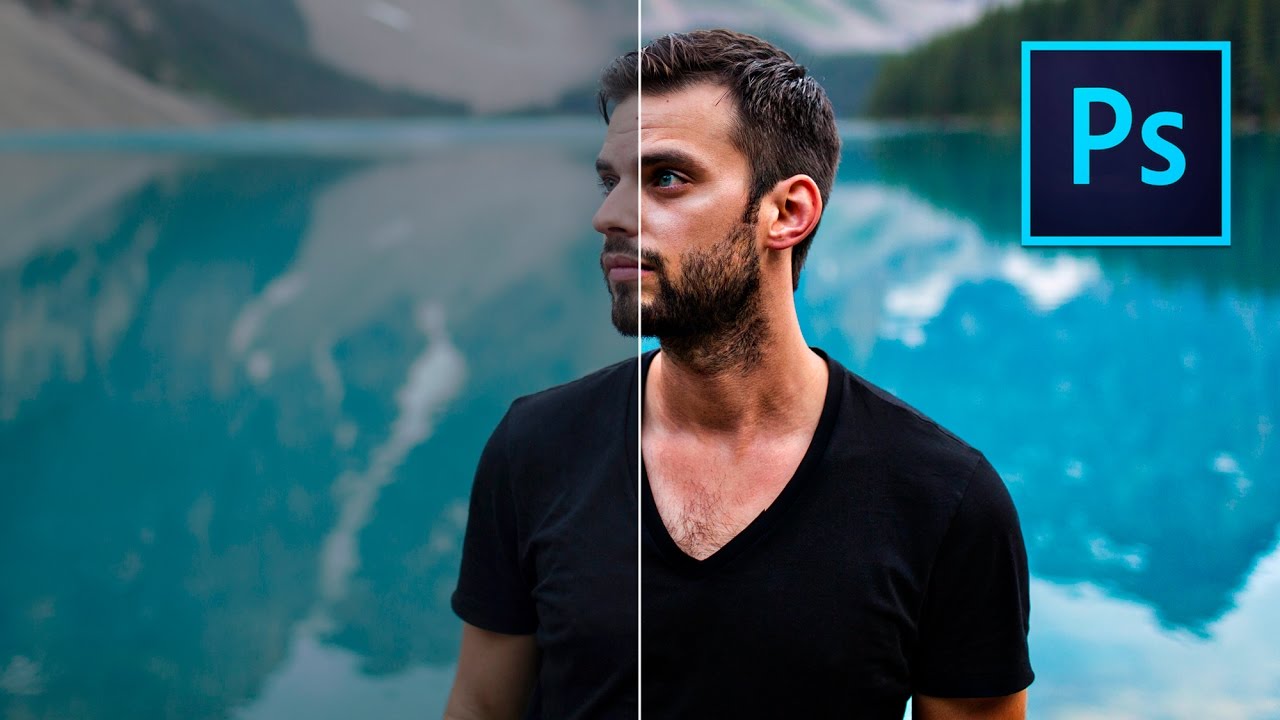
Retouching skin is one of the most common tasks in portrait photography. Small blemishes, uneven skin tone, and visible pores can all be cleaned up in Photoshop to create a more polished final image. The key is doing it subtly. Over-smoothing skin makes a photo look plastic and fake. The goal is to reduce imperfections while keeping the natural texture of the skin intact.
Today we are going to learn how to smooth skin and remove blemishes in Adobe Photoshop CC using a non-destructive workflow.
How to Smooth Skin in Photoshop
Selecting the Skin
- Open your portrait image in Photoshop.
- Select the Quick Selection Tool from the toolbar. Paint over the skin areas you want to smooth. Hold Alt (Option on Mac) while painting to deselect areas you accidentally included, like the eyes, eyebrows, lips, and hair.
- Go to Select > Refine Edge (or Select and Mask in newer versions).
- Check Smart Radius and increase it to about 6-7 pixels. This helps the selection adapt to edges between skin and hair.
- If hair overlaps the skin area, use the Refine Edge brush to paint over those transitions for a cleaner selection.
- Set Output To to New Layer with Layer Mask and click OK. This creates a copy of just the skin on a new layer with a mask.
Applying the Blur
- Click on the eye icon next to your original photo layer to make it visible underneath the skin layer.
- Select the skin layer. Go to Filter > Blur > Surface Blur.
- Adjust the settings based on your image resolution. A good starting point:
- Radius: 16 pixels
- Threshold: 12 levels
- Surface Blur is better than Gaussian Blur for skin because it preserves edges. It smooths out the surface texture without blurring the boundaries between features.
- Click OK. The skin should look noticeably smoother.
Restoring Detail Where Needed
- Select the Layer Mask on the skin layer.
- Choose the Brush Tool with these settings:
- Size: 25%
- Hardness: 0%
- Opacity: 100%
- Color: Black
- Paint over the eyes, eyebrows, nostrils, lips, and any area where you want to reveal the original sharp detail underneath. This masks out the blur in those areas.
Removing Remaining Blemishes
- If individual blemishes are still visible after the blur, select the Spot Healing Brush Tool.
- Make sure Content-Aware is selected in the options bar.
- Adjust the brush size to slightly larger than the blemish and click on each one. Photoshop will intelligently replace it with surrounding skin texture.
Adding Back Texture
- To prevent the skin from looking too smooth, go to Filter > Noise > Add Noise.
- Choose Gaussian and check Monochromatic.
- Add a very small amount of noise (1-2%). This reintroduces subtle texture that keeps the skin looking natural.
Tips
- Less is more. The most common mistake is over-smoothing. If you can obviously tell the skin has been retouched, dial it back.
- Work on a duplicate layer. Always keep your original image intact so you can compare and undo if needed.
- Dodge and Burn for advanced retouching. For even more control, use the Dodge Tool to brighten under-eye shadows and the Burn Tool to add depth to contours.
- For related techniques, check out how to brighten a face in Photoshop.
That is how you smooth skin and remove blemishes in Photoshop. A combination of Surface Blur, masking, and the Spot Healing Brush gives you clean, natural-looking results in just a few minutes.